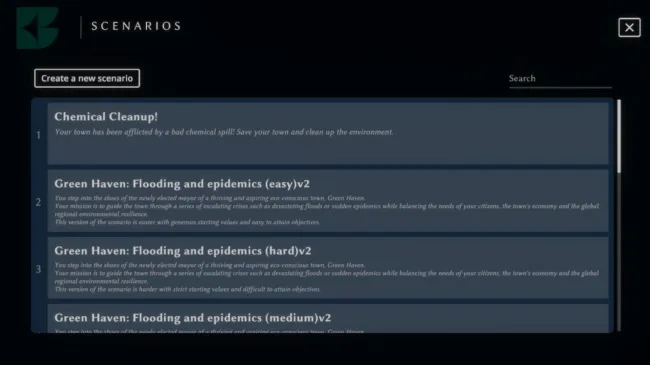
Teachers have various options for designing lessons in the game Build As Nature. Their start screen contains the following options:
1. Tutorial
2. My Scenarios
3. Rooms
4. Public Scenarios
Explanations for the public scenarios are available for download on this website under the "Teacher" menu item. To access these, you must first register as a teacher on this website.
My Scenarios
Scenarios are pre-configured learning environments. They can be customized for each learning objective. For example, different difficulty levels or climate impacts can be defined in advance. The timing of droughts or floods is also specified here.
Scenarios include the following editing options:
- Edit – Opens the scenario editor to edit the scenario.
- Play – Lets you play the scenario yourself, as a student would.
- Publish – Makes the scenario publicly available to all teachers and students.
- Clone – Duplicates the scenario in your "My Scenarios" list.
- Delete – Permanently removes the scenario.
- Back – Returns to the "My Scenarios" view.
In this area, instructors can also perform the following actions. The "Create new scenario" button in the upper left corner of the screen starts the creation process. You can find scenarios by name using the search bar in the upper right corner.
Public Scenarios
This section displays all game environments from all instructors that have been marked as public. These can be filtered. In the "Public Scenarios" section, instructors have the following options:
- Edit – Opens the scenario editor to edit the scenario. This option is only displayed if you are the scenario's author.
- Preview – Allows you to play the scenario yourself, as a student would.
- Delete – Permanently removes the scenario. This option is only displayed if you are the scenario's author.
- Back – Returns to the "Public Scenarios" page.
Rooms
These can be created for individual lessons or classes. Each room is assigned a scenario and a unique access code is generated. This code is then shared with the students so they can join the room.
Rooms offer the ability to select a scenario for each lesson or class and to analyze learning progress and student enrollment.
In rooms, teachers have the following options:
- Analytics — opens the Analytics panel for the Room
- Delete — permanently removes the Room
- Back — returns to the Rooms screen.
At the Analytics panel you can see how many students have played the room scenario; how many students have reached the scenario objectives and several in-game variables:
The in-game variables available are the following:
- Economy— shows the total system Economy per turn.
- Health— shows the total system Health per turn.
- Biodiversity— shows the total system Biodiversity per turn.
- Water Pollution % — shows the total system Water Pollution per turn.
- Economy Spent—shows the amount of Economy spent per turn.
- Engineering Cards—shows the number of Engineering Cards on the board per turn.
- NBS Cards— shows the number of NBS Cards on the board per turn.
- Card Activity — shows the number of Card Combinations, Imported Cards, Produced Cards and Recycled Cards.
- Objectives and Summary — shows whether the scenario objectives have been reached and how much time the student spent playing the room scenario.